Build A Steal An Egg Controls
PC, mobile, and console inputs plus Shop, code box, and HUD tips.
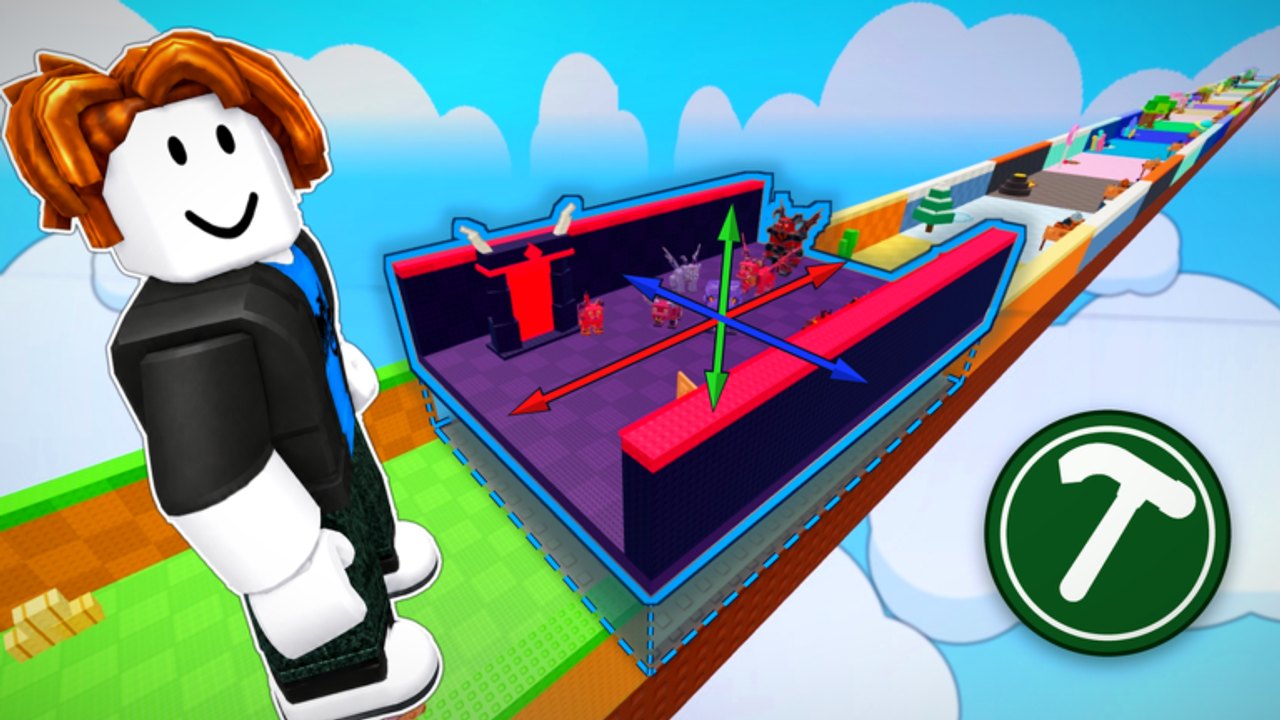
This controls guide helps you move, look, interact, and open the Shop / code UI in Build A Steal An Egg on Roblox. Construction Cat Studios’ experience uses standard Roblox input patterns with game-specific HUD buttons — especially the left-side Shop used to redeem RELEASE. Master these basics before contested steals in six-player servers.
After controls feel natural, continue with Getting Started and How to Redeem Codes.
Universal Roblox movement (all devices)
| Action | What you want |
|---|---|
| Move | Walk / sprint toward eggs and base exits |
| Camera | Keep the next turn visible while carrying |
| Jump | Clear small props and stairs |
| Interact / prompt | Pick up eggs or use build stations when the prompt appears |
| Open Shop | Reach Enter code and purchases |
Exact buttons differ by platform, but the goals stay identical.
PC controls
| Action | Typical input |
|---|---|
| Move | W A S D |
| Camera | Mouse movement |
| Jump | Space |
| Interact | E (or on-screen prompt click) |
| Sprint | Check Roblox settings / shift lock preferences |
| Shop | Left-click the Shop button on the left HUD |
| Code field | Click Enter code, type or Ctrl+V, press Redeem |
PC tips:
- Enable shift lock only if you already aim well with it — newcomers sometimes tunnel-vision.
- Raise GUI scale in Roblox settings if Shop text is tiny on 1440p / 4K.
- Click the code field once before pasting so focus is correct.
- Close Shop fully before a steal so it does not eat clicks mid-chase.
Mobile controls
| Action | Typical input |
|---|---|
| Move | Left virtual joystick |
| Camera | Drag on the right side of the screen |
| Jump | On-screen jump button |
| Interact | Tap the contextual prompt when near eggs / stations |
| Shop | Tap Shop on the left stack |
| Code field | Tap Enter code, paste from clipboard bar, tap Redeem |
Mobile tips:
- Landscape mode usually keeps the left Shop icon from colliding with the joystick.
- Lower extra phone overlays (recording bubbles, edge gestures) during redeem attempts.
- Autocorrect loves turning
RELEASEintorelease— proofread before Redeem. - After redeeming, tap empty space to close panels and verify Cash.
- If prompts are hard to tap while moving, stop briefly, interact, then sprint.
Console controls
| Action | Typical input |
|---|---|
| Move | Left stick |
| Camera | Right stick |
| Jump | Bottom face button (A / Cross style — follow on-screen legends) |
| Interact | Contextual button shown beside the prompt |
| UI navigate | D-pad / stick + confirm |
| Shop | Highlight left HUD Shop, confirm |
| Code field | Select Enter code, on-screen keyboard, confirm Redeem |
Console tips:
- Move slowly through Shop rows; it is easy to purchase the wrong product.
- Capitalization on
RELEASEmust be entered manually on many keyboards — double-check each letter. - If the HUD feels clustered, adjust safe area / resolution on the console side.
- Practice opening and closing Shop in a quiet lobby before contested play.
Game UI map (what matters day one)
Shop (left)
Primary place for purchases and the Enter code box. Scroll below featured offers. Detailed redeem steps: How to Redeem Codes. Live strings: Codes Hub.
Contextual prompts
Appear when you near eggs or interactable build elements. If nothing shows, inch closer, clear overlapping menus, or wait for replication on a busy server.
Currency / Cash readout
Watch this after redeeming RELEASE (~50.9K Cash) and after successful loops so you know upgrades are affordable.
Build / inventory style panels
Exact labels can shift with patches (Updates Hub). Learn which panel places pieces versus which one only previews them — misclicks mid-rebuild are common.
Settings worth changing
- Graphics level — stable FPS beats max shadows during steals.
- GUI / camera sensitivity — lower sensitivity if you over-steer returns.
- Performance mode on low-end phones — keeps prompts responsive.
- Headset volume — footsteps and rival noise matter in contested lobbies.
- Account security — 2FA on Roblox before experimenting with any third-party tools (Scripts Hub).
Control drills (five minutes)
- Spawn, open Shop, scroll to Enter code, close Shop without redeeming (unless you still need RELEASE).
- Sprint your base exit lane while only steering with camera discipline.
- Approach a practice egg, wait for the prompt, cancel without picking up if you are not ready.
- Pick up, return, secure — focus on not opening Shop mid-carry.
- Repeat once on mobile or controller if you swap devices often.
Device switching advice
Many players redeem codes on phone, then steal on PC. Muscle memory does not transfer perfectly. Do one unscored practice loop after every device switch. Keep the same base landmarks so spatial memory still works even when inputs change.
Accessibility notes
- Colorblind players should track Cash numbers, not only toast colors.
- One-handed mobile play is possible but risky mid-carry — prefer two thumbs for contested returns.
- Remap where Roblox settings allow if a default jump / interact conflict hurts you.
- Large text / GUI scale helps Shop redeem accuracy more than people expect.
How controls connect to the rest of the wiki
- Bad camera habits → failed returns → read How to Steal Eggs
- Cannot find Enter code → How to Redeem Codes
- Build menu confusion → How to Build
- Full lobbies punishing misclicks → Players Hub
- Priority spends after you can finally open Shop reliably → Tier List Hub
Related pages
Learn the HUD once. Every later guide assumes you can open Shop and answer a prompt without thinking.
Frequently Asked Questions
Quick answers to the most common questions.
Where is the Shop button in Build A Steal An Egg?
On the left side of the HUD. Open it, then scroll to find the Enter code field for promos like RELEASE.
What key interacts with eggs on PC?
Usually E or the on-screen contextual prompt. If nothing happens, move closer and close overlapping menus.
Why can’t I type RELEASE correctly on mobile?
Autocorrect often lowercases the code. Paste carefully or disable autocorrect for that field, and keep capital letters.
Do console players get a different code menu?
No — same Shop → Enter code flow. Use the on-screen keyboard and verify capitalization.
Should I open Shop while carrying an egg?
Avoid it. Close menus before contested returns so clicks and face buttons still control movement and camera.